Product

Everything Spacely does — and how.

One clean flow for junk, plus tools for files, photos, apps and notifications. Each tool asks only for what it needs, and every number on screen is measured on your phone.

Home

See where your space went.

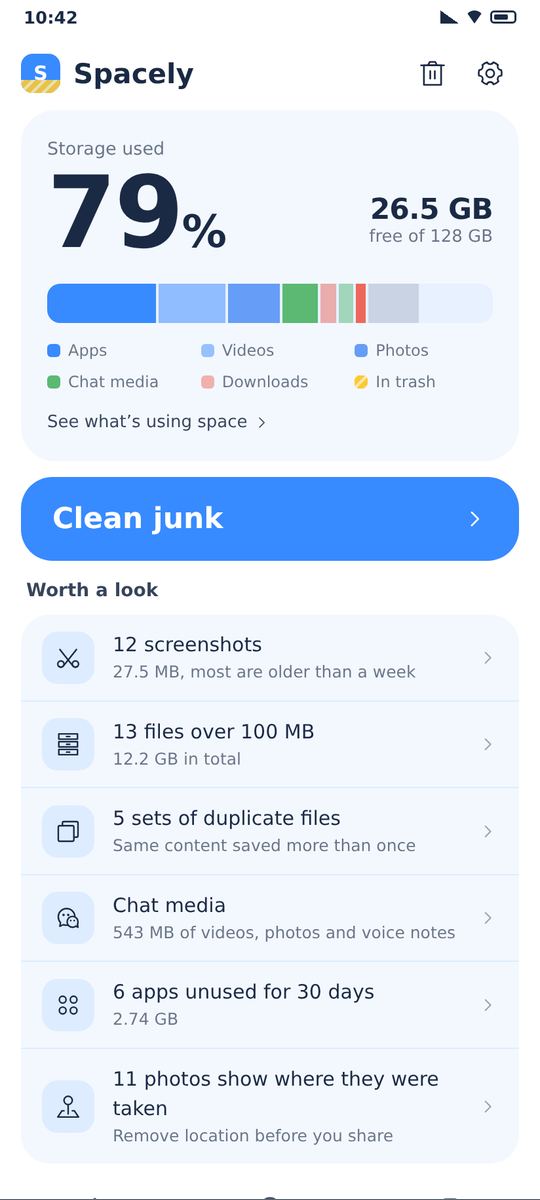
Storage used and free space at a glance, a strip drawn to real proportion — a colour for each kind of file, yellow for what’s waiting in the trash — and a short list of what is worth a look. Every row shows what that tool actually found.

Storage & files

Gallery cleanup

Check before you clean.

Screenshots, similar shots and duplicates sit in one place, each with its size. Tick what you don’t need — the bar at the bottom says how many items and how much space, and that they’ll wait in the trash before they’re gone.

Recycle bin

Similar photos

Keep the best shot.

Similar shots are grouped on your phone. The best one in each group is marked and left unticked, so you only choose which copies to let go.

Large files

Biggest files first.

Filter by size and type, see where each file lives and how long ago you saved it, and move what you no longer need to the trash.

Trash

Change your mind.

Deleted items wait in the trash until they expire — Android decides the date, usually 30 days. Restore them, or delete them forever to free the space for real. Space in the trash is shown as pending, never as freed.

One-tap clean

From scan to done, in four steps.

You see what was found before anything is removed — and the finish screen shows what was really freed.

01

Scan

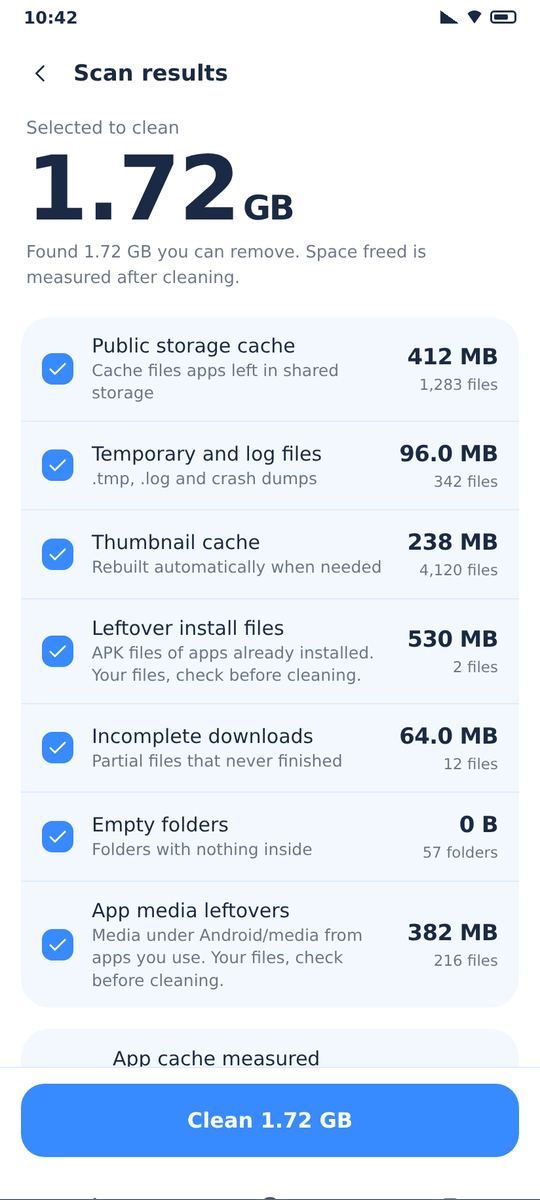
Caches, temp and log files, thumbnails, leftover installers, unfinished downloads and empty folders.

02

Review

Results are grouped by category. Expand any group and uncheck items before deleting.

03

Clean

Only what you left checked is removed. Other apps’ private cache is opened in Android’s own app page.

04

Done

The freed figure is the measured increase in free space — if it can’t be measured, it isn’t shown.

Features

Tools for every corner of your storage.

Junk clean

Finds cache folders, temp and log files, thumbnails, leftover installation packages, unfinished downloads and empty folders. With usage access, it also shows how much cache each installed app holds, as measured by Android, and opens that app’s own page so you can clear it — Android lets no app delete another app’s cache.

Whole-phone scan needs all files access · optional

File manager

Browse every file by type — images, videos, audio, documents, archives, APKs and downloads — with a count and size for each. Browse internal storage folder by folder, sort by name, size or date, and open, share or delete any file. Find the biggest files and delete or bin them.

Sharing a file is always your choice

Recycle bin — undo it

Photos, videos, large files and duplicates go to a recycle bin before they are gone. On Android 11 and later, photos and videos go to Android’s own system trash, with the real expiry date Android reports; other files go to Spacely’s bin. Android 8–10 has no system trash, and Spacely says so before you delete.

“Moved to bin” is shown as pending, never as freed

Swipe review — sweep it

One photo at a time, full screen: swipe left to bin it, right to keep it. Nothing is deleted until you confirm. Works on screenshots, blurry shots, similar groups, long screenshots, big videos and screen recordings — and anything only suspected of being junk starts unchecked.

Screenshots · blurry · similar · big videos

Duplicates

Similar shots are grouped by perceptual hash and byte-identical copies by SHA-256, all compared on your device; the best photo in each group is kept and left unchecked. Duplicate files of any type are matched byte for byte, and the oldest copy is kept.

pHash + SHA-256 · computed on device

Chat cleaner & app manager

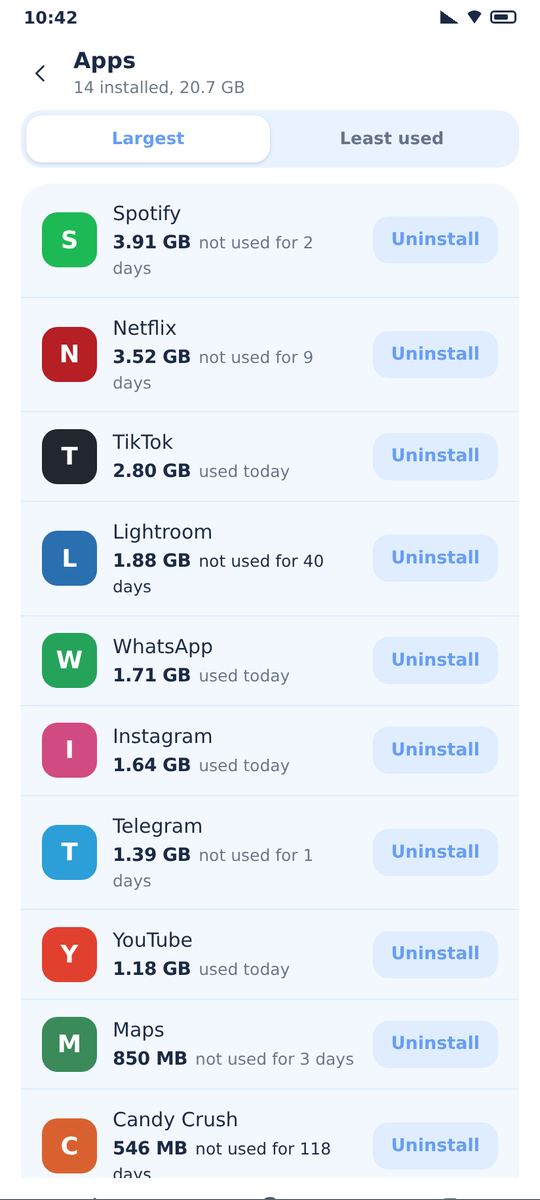
The chat cleaner lists photos, videos, voice notes and files from chat apps you have installed; chat backups are never listed. The app manager shows each app’s size and the days since you last used it, and uninstalls through Android’s own uninstall dialog. Your app list never leaves your phone.

App usage needs usage access · optional

Storage map

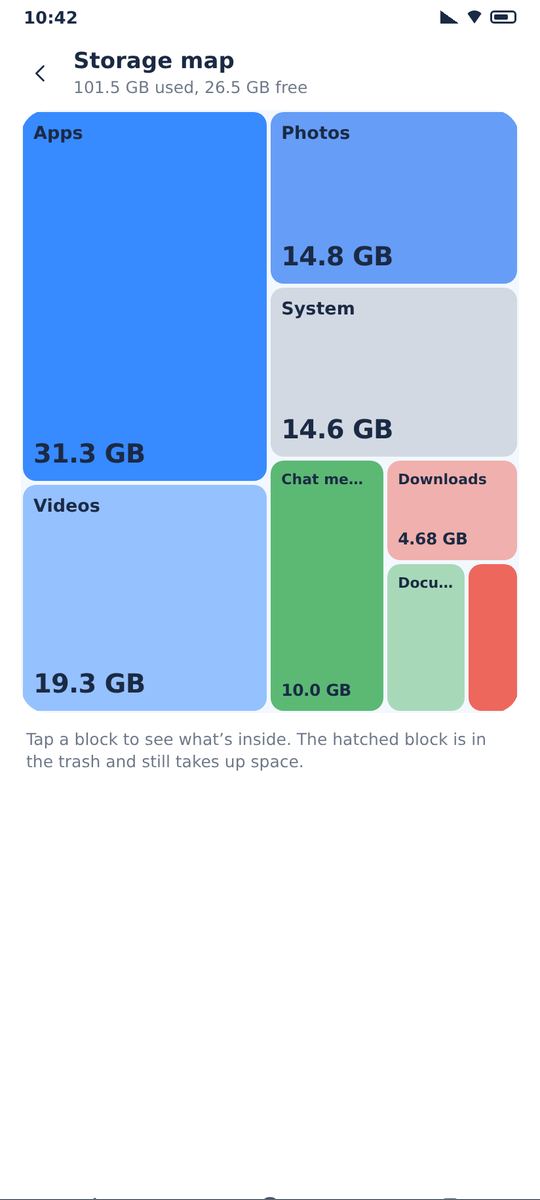
A breakdown of your storage by size. Drill down into folders and open any file’s details to decide what to keep — deletions from the map go to the recycle bin first.

Breakdown by size

More tools

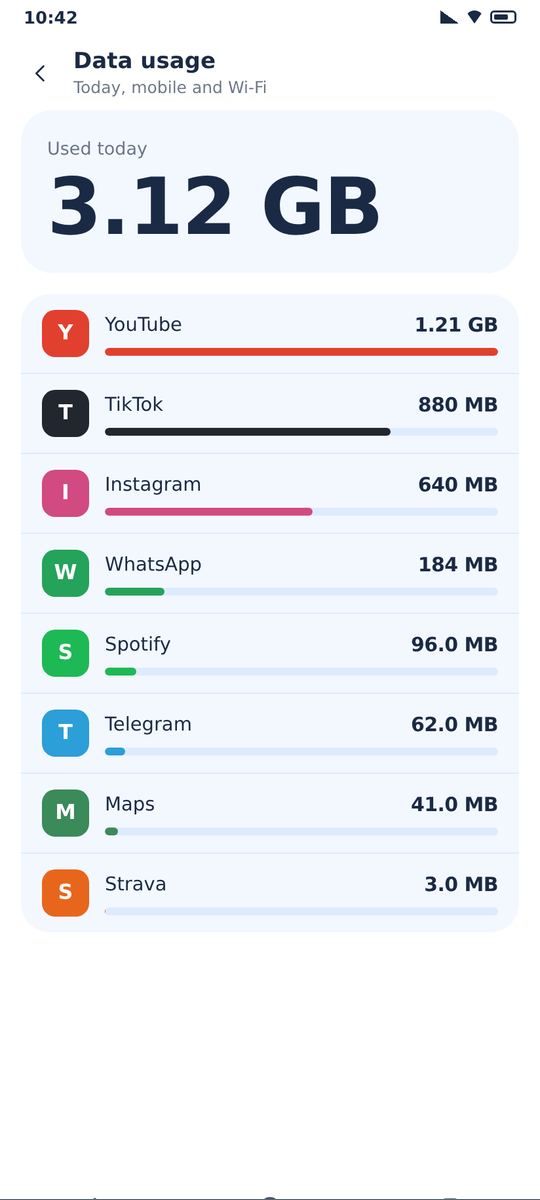
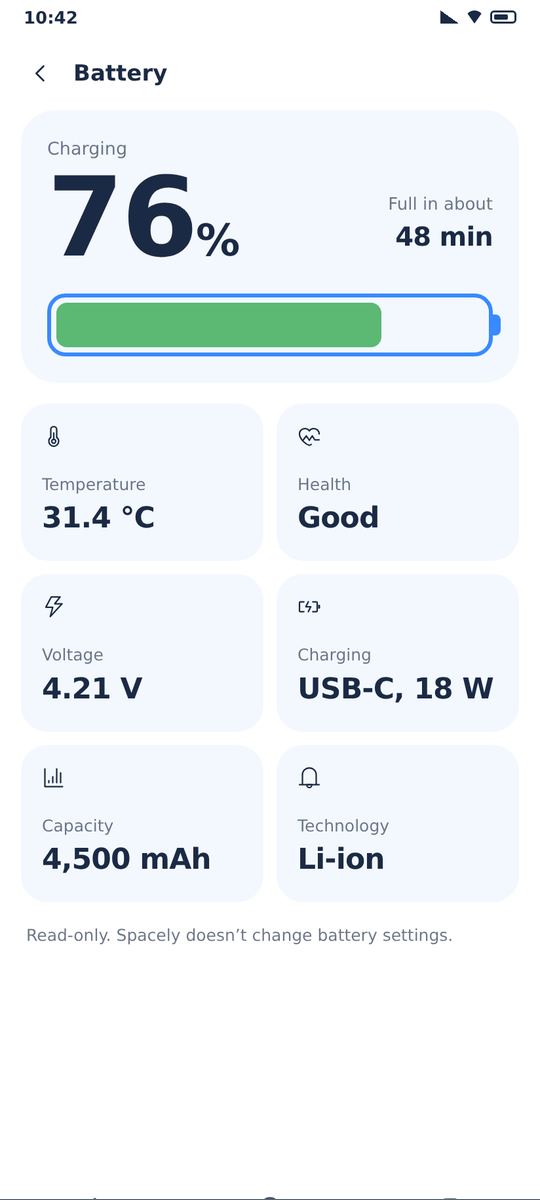
Remove the location saved inside photos, compress photos, review audio, see battery details, and add home-screen widgets for storage and battery. The notification cleaner clears notifications from the apps you pick — it never reads what they say — and Data usage shows how much data each app used today.

Each tool asks only for what it needs

Notifications, only if you want them

A storage overview in your notification shade shows free space and current network speed, and measured sizes of junk, Trash or large files when you expand it; switch it off anytime in Settings. Cleanup notices point to something worth checking and have a daily limit.

Overview can be switched off · real figures only

Permissions

Asked when needed. Optional, always.

Each one is explained before you allow it. Saying no limits only that feature — the rest of the app keeps working.

PermissionWhat it is used forAsked
Photos and mediaFind large files, duplicate and similar photos.When a photo tool needs it
All files accessScan leftover folders and non-media files — documents, archives, installers, downloads — for the file manager and junk clean.Optional
Usage accessApp sizes, cache sizes, last-used times and today’s data use per app. Read on your phone, never uploaded.Optional
Notification accessThe notification cleaner: show and clear notifications from the apps you pick. Never reads what they say.Optional
NotificationsStorage overview in the notification shade and cleanup notices.Optional

The full list, including the permissions granted at install, is in section 5 of the privacy policy.

Languages

Fourteen languages, built in.

All shipped inside the app with no extra download. Choose one in Settings, or follow your phone.

English日本語DeutschFrançaisEspañolItalianoPortuguêsРусскийBahasa IndonesiaไทยTiếng ViệtBahasa MelayuFilipinoहिन्दी

Questions about a feature?

Our FAQ covers permissions, notifications, the recycle bin and what Spacely deliberately won’t do.